
Assign Providers
Choose which providers serve each client and set visit pricing.
Provider assignments decide which clinicians can serve each client's patients — and what a visit costs for that client. Who can do this: Admins — see Roles & Permissions.
Open ClientsAssign providers to a client
Open the client profile
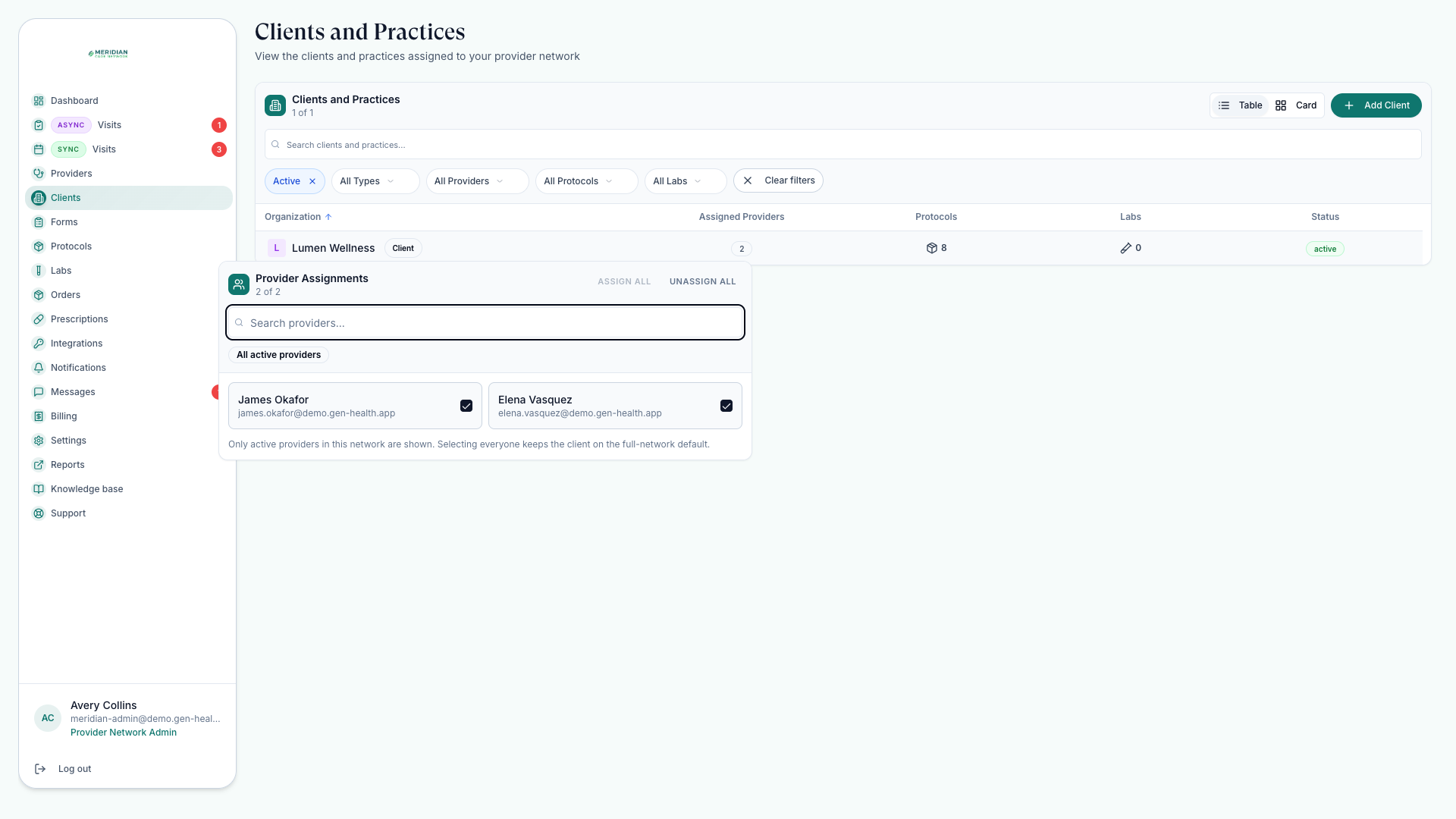
From Clients, choose the client and open the provider assignment area.
Choose allowed providers
Select the in-network providers for that client's patients.
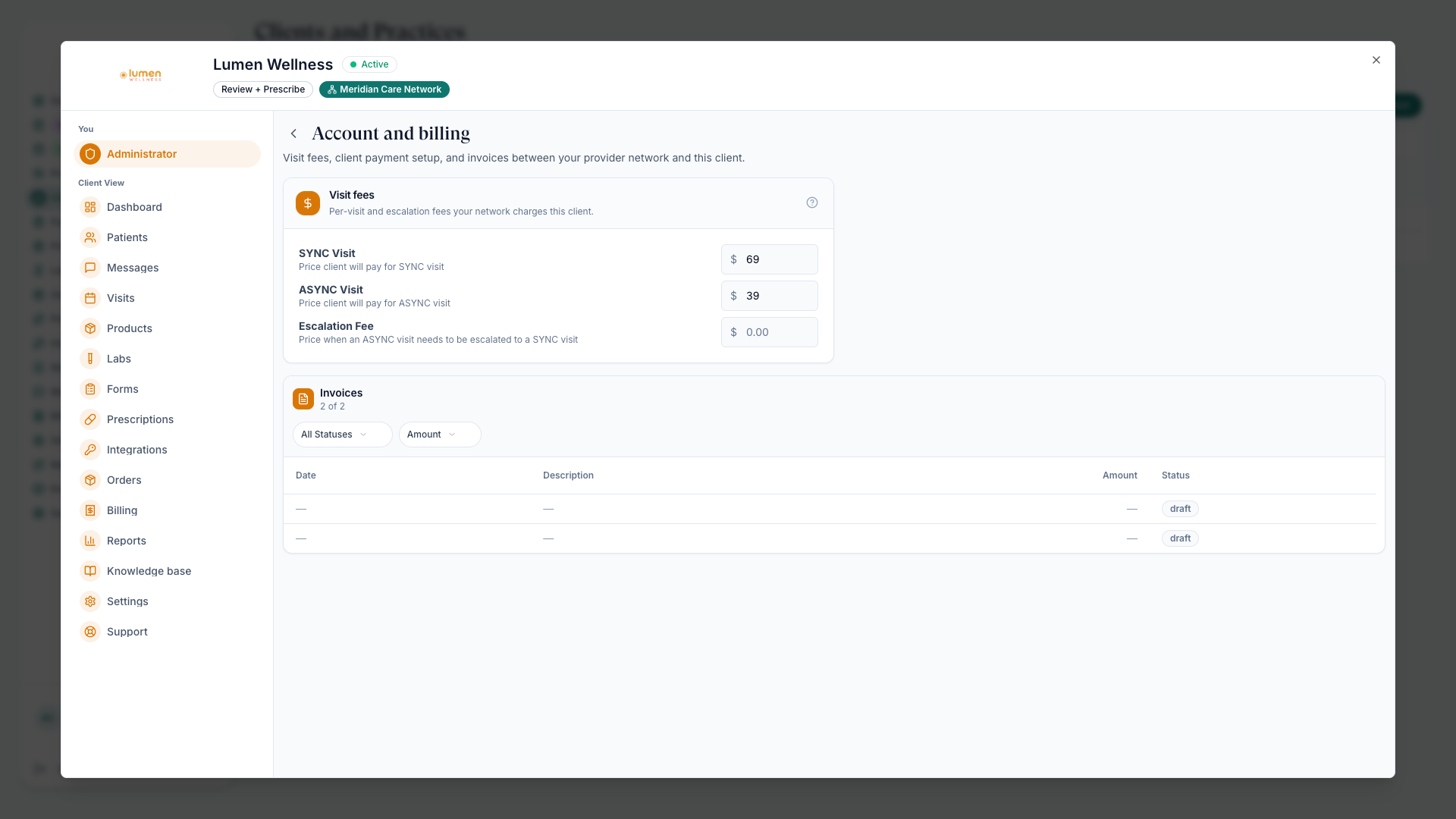
Confirm visit pricing
Set pricing where required for chart reviews (async — reviewed from the chart, no appointment) and escalation visits for the linked client.
Validate patient booking
Confirm the right providers appear in visit creation and patient scheduling. If not, re-check the assignment list and each provider's licenses.
Why assignments matter
Assignments ripple downstream: they shape which patients a provider can see, which chart reviews they can claim, and which providers a patient can book. When a provider reports a missing patient or an unclaimable review, check the client assignment first — see Find Patients.
How fallback works
If a client has no explicit assignment, active providers may be available by fallback. That keeps care moving, but explicit assignments make operations and reporting clearer — you always know who should serve whom.
Prefer explicit assignments over fallback. They make schedules, queues, and reports predictable.
Common questions
Why did a provider get added to a client assignment on their own?
When a visit is created and the assignment mapping is stale, the platform can auto-add the provider to keep the visit and the assignment list consistent.
A provider isn't appearing for a client — why?
Check that the provider is active, assigned to the client, and licensed in the patient's state. Credential Checks covers the license side.
Was this helpful?