
Get Support
Open a support ticket with attachments when you need help beyond the guides.
When a problem goes beyond the workflow tools, open a support ticket from inside the app — with the files and screenshots that make it fast to resolve. Any provider-side user can create one; tickets are scoped to your network, and the conversation stays in one place.
Open SupportWhen to open a ticket
Support is for issues the workflow pages can't fix. Before opening a ticket, rule out the usual suspects:
- A missing patient is usually a scope issue, not a bug — see Find Patients.
- A provider who can't prescribe usually has incomplete verification — see ScriptSure Setup.
- A stalled order often needs an operational status correction — see Track Orders.
What a good ticket includes
- What you expected and what actually happened.
- Where it happened — the page, the patient, the order or visit involved.
- Screenshots or files that show the problem.
- What you already ruled out from the checks above.
- When it started, if you know.
Open a ticket
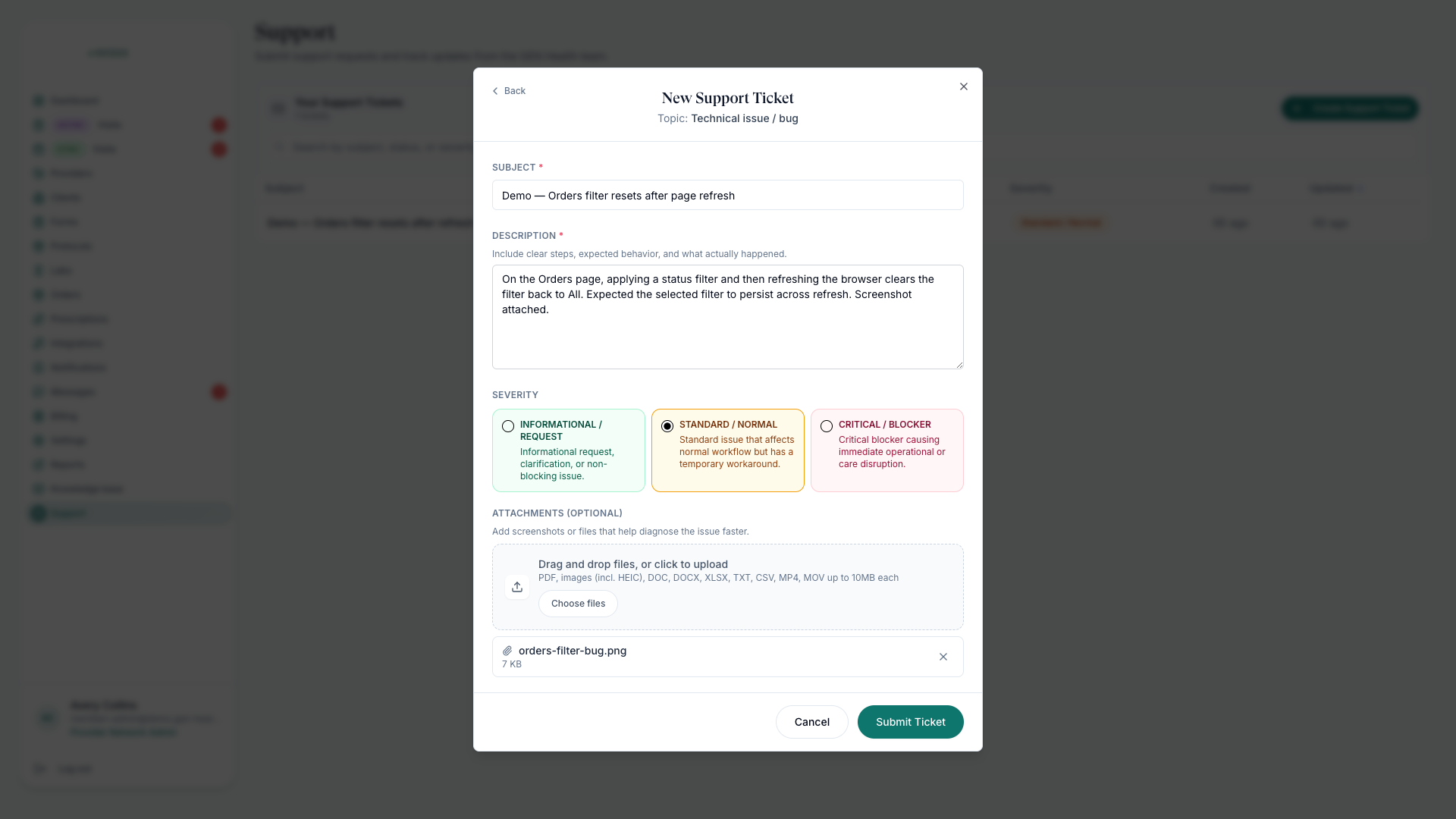
Create the ticket
Open Support and describe what you expected, what happened, and where it happened.
Attach evidence
Add files and screenshots — they usually save a round of back-and-forth.
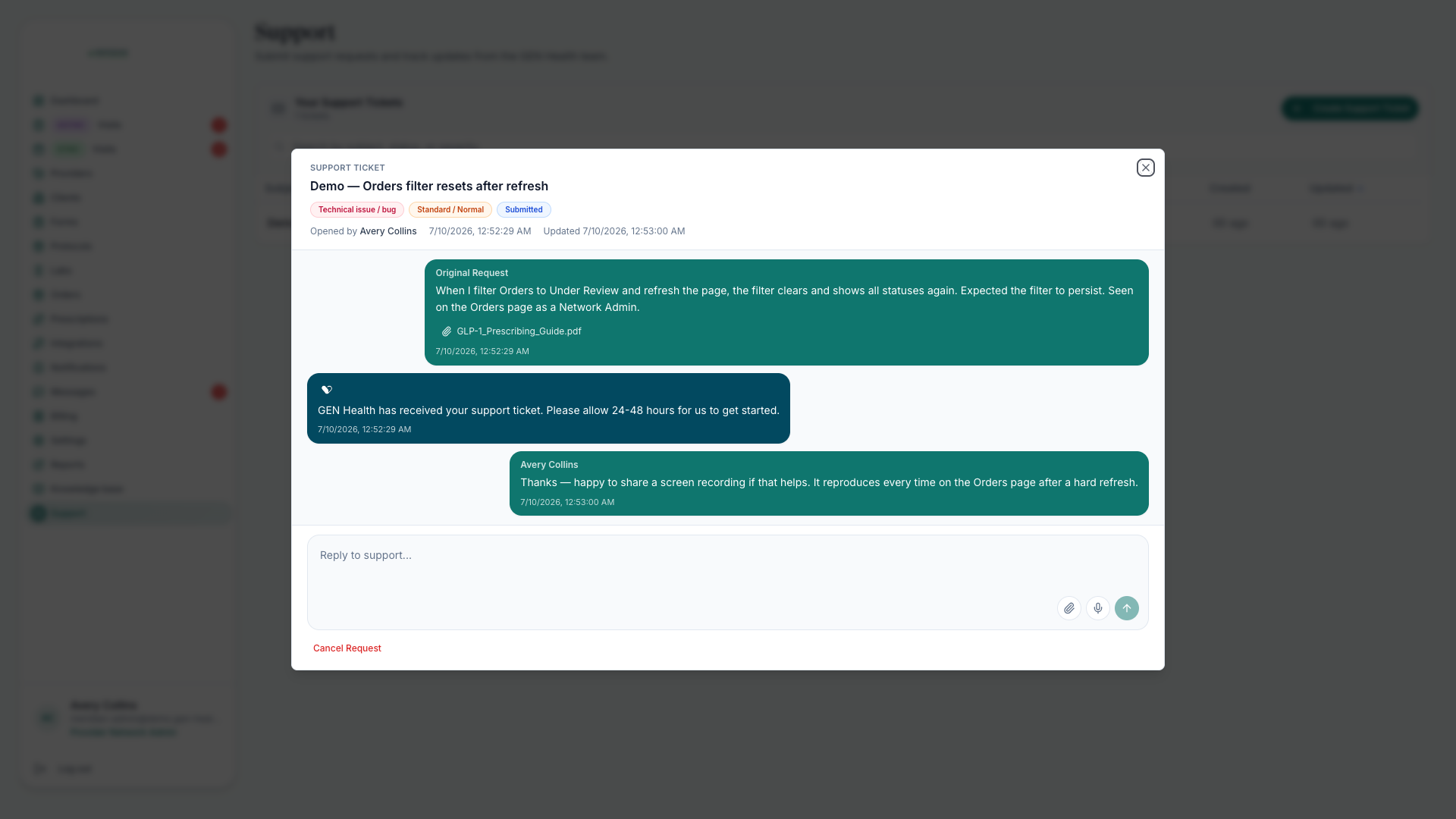
Continue the conversation
Replies land in the ticket thread. Keep the discussion there, and close the loop once it's resolved.
Keep tickets useful
Two habits from the daily closeout.
Tickets are updated with current status and attachments.
Blockers tied to a patient, order, visit, or prescription also get follow-up on the source page.
Ticket review is part of the end-of-day closeout in Daily Workflow.
This help center is organized by task — start from How Networks Work if you're not sure where a question belongs.
Was this helpful?