
Run Reports
Answer productivity, billing, and audit questions with filtered reports and CSV exports.
Reports answers the trend and money questions queues can't: who's productive, which clients drive volume, and what needs reconciling. Queues do the work; Reports show whether it's healthy. Who can do this: Admins see network-wide reports; Providers and Provider Delegates see their own activity — see Roles & Permissions.
Open ReportsWhat you can report on
Reports covers provider productivity, per-client comparison, client payouts, billing, visits, prescriptions, and audit trails — all scoped to your network.
Two families: audit and timeline reports answer "what happened here"; productivity and comparison reports answer "how are we doing".
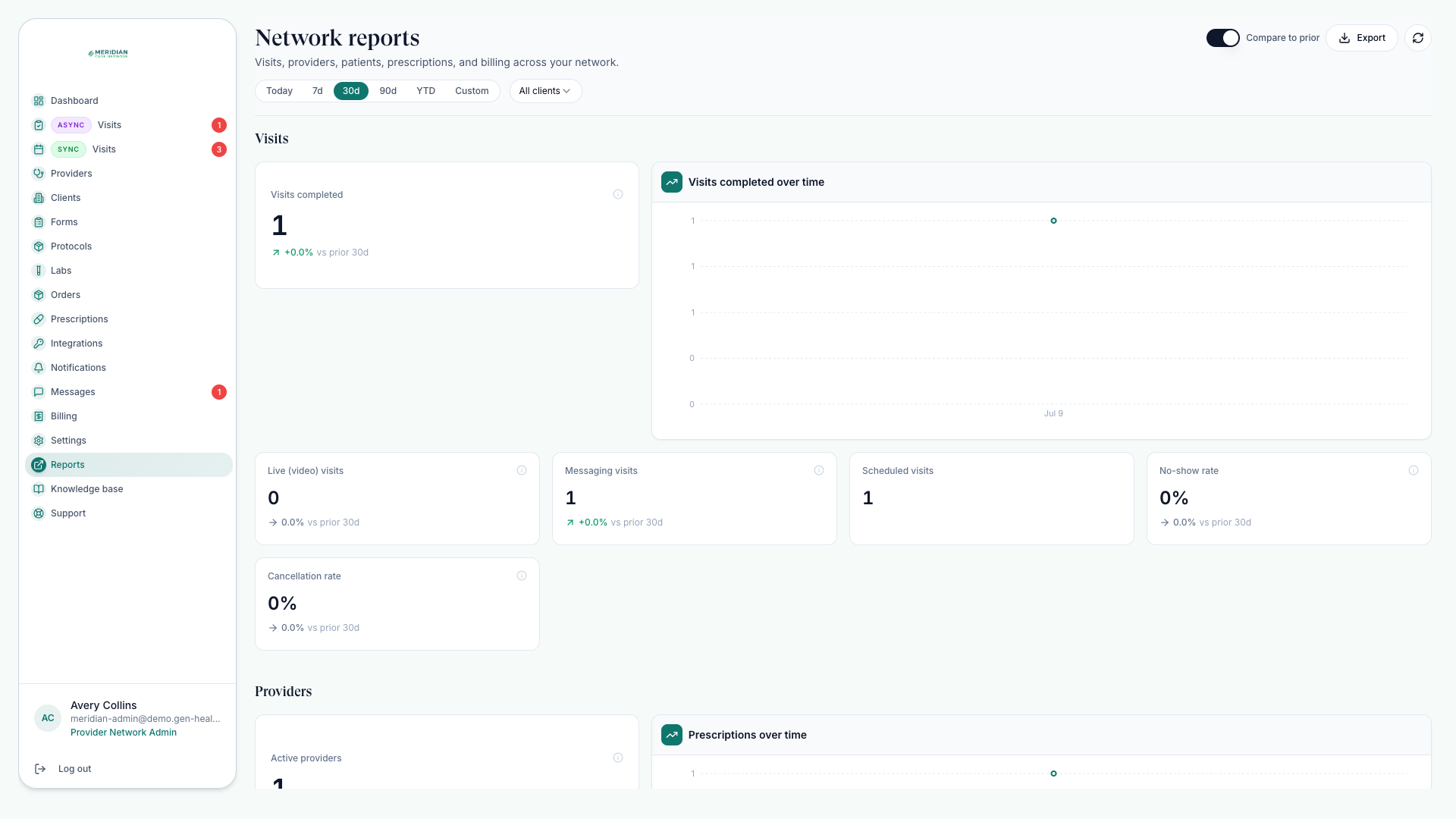
Pick the right report
| Question | Start with |
|---|---|
| Which clients are driving volume? | Client performance and comparison reports. |
| What needs financial reconciliation? | Client payouts, billing, visit purchases, and order reports. |
| How productive are providers? | Provider productivity and chart-review activity. |
| What happened with a patient or workflow? | Audit and timeline reports, then the source record itself. |
Export a report
For one specific record, skip Reports: open the order, visit, prescription, or provider and read its timeline.
Start from the question
Choose the report that answers it — not the export format.
Set dates and filters
Filter by client, provider, status, product, or workflow where available.
Review in-app first
Confirm the rows answer the question before exporting. Adjust filters until they do.
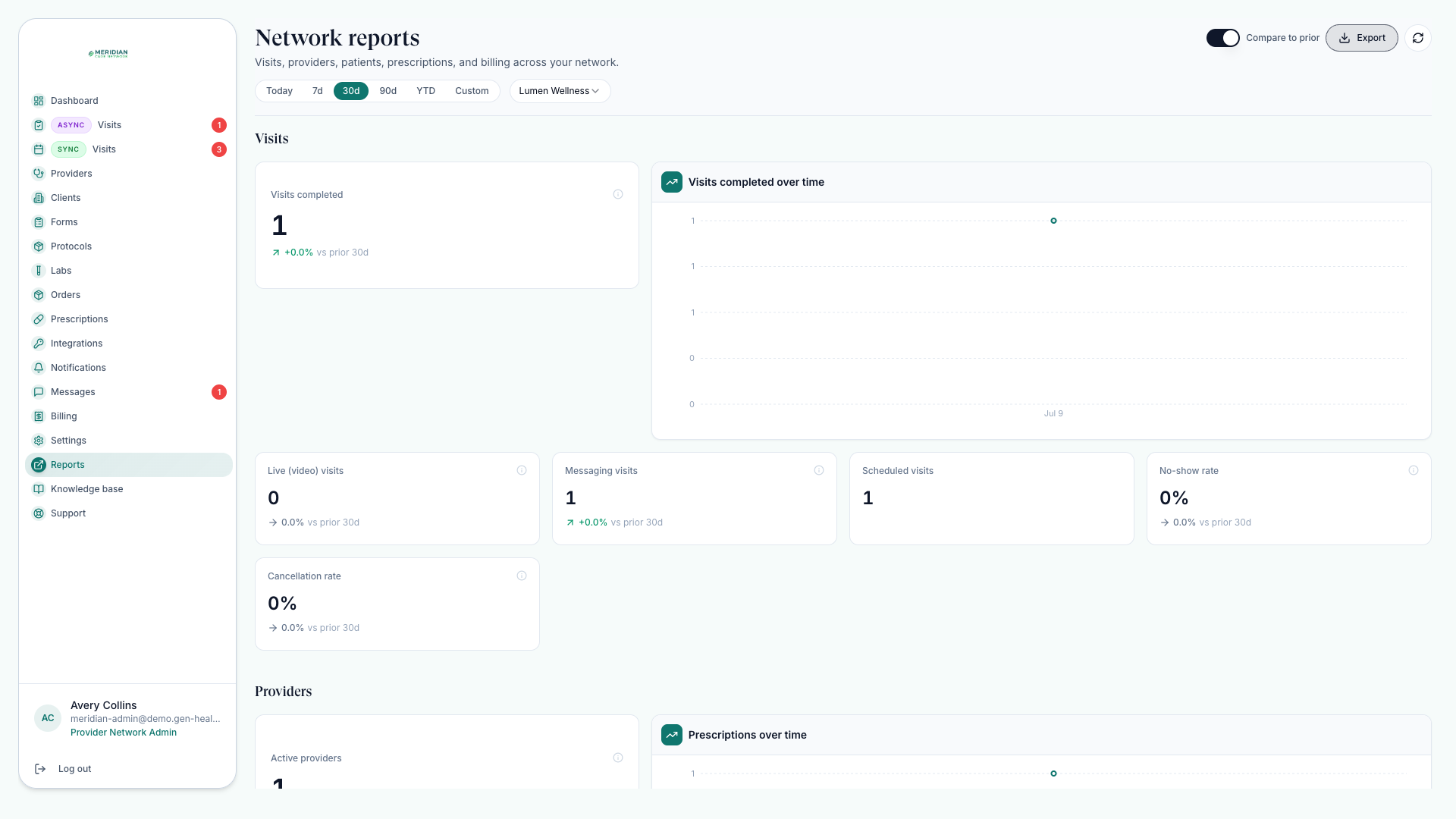
Export the CSV
Download only the filtered data you need. Exports respect your filters, so tight filters mean clean spreadsheets.
Reports are for analysis. Make record-level fixes from the source page — Orders, visits, Prescriptions, or Providers. See Track Orders.
Which report shows what a client owes or is owed?
Start with client payout and billing reports, then reconcile line items against orders — see Track Orders.
Was this helpful?