
Manage Labs
Enable lab tests for your network and connect them to protocols and products.
Labs decides which lab tests your network offers and how results feed the rest of care — from protocol requirements to follow-on products. Who can do this: Admins configure labs; Providers and Provider Delegates are read-only — see Roles & Permissions.
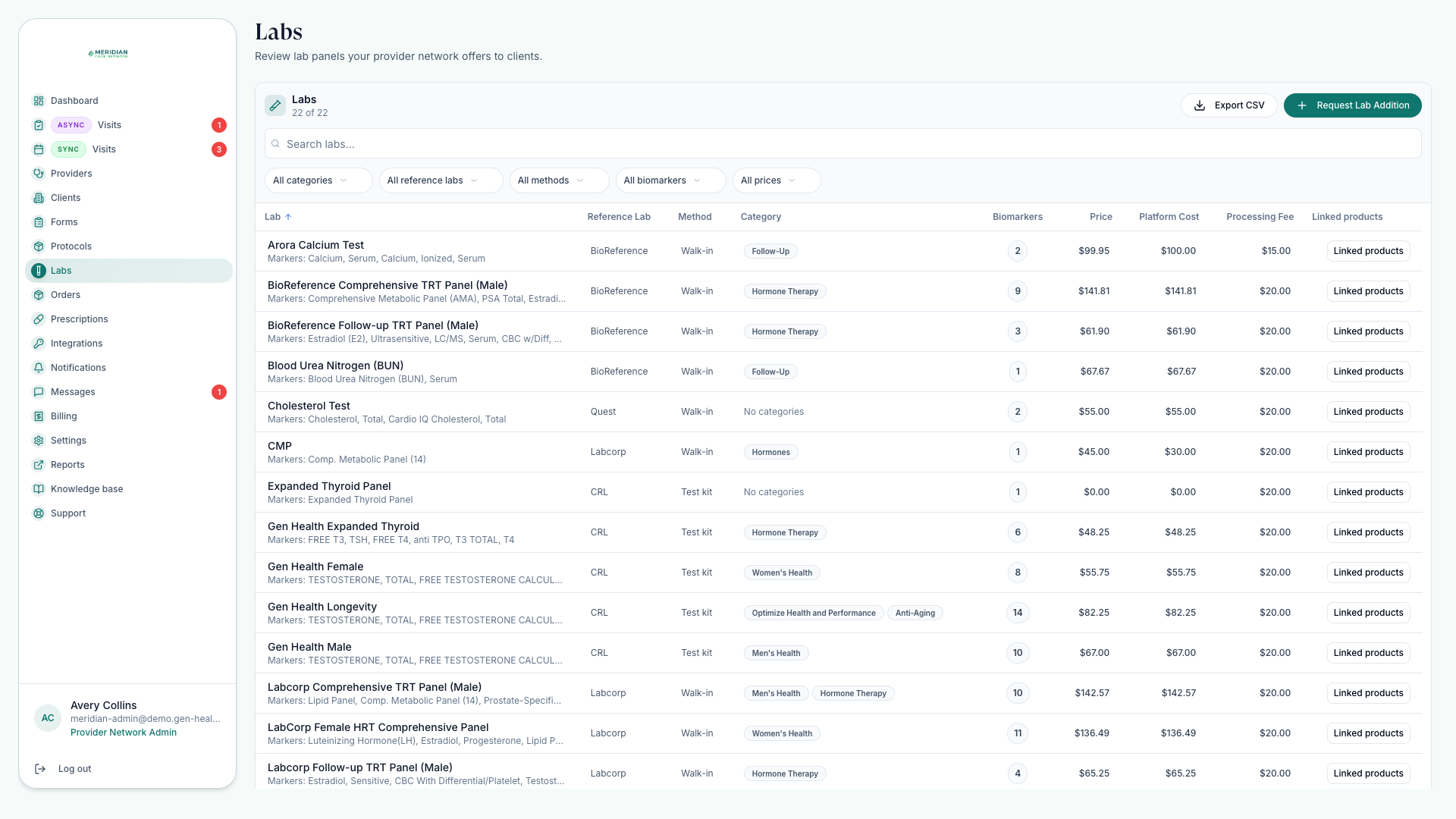
Open LabsThe Labs page
Labs shows the integration-backed lab tests available to your network. Turn on labs from the shared catalog, request missing labs, organize categories, and link labs to follow-on products.
Common workflows
Review available labs
Filter by category, marker, vendor, status, or collection details to find the lab you need.
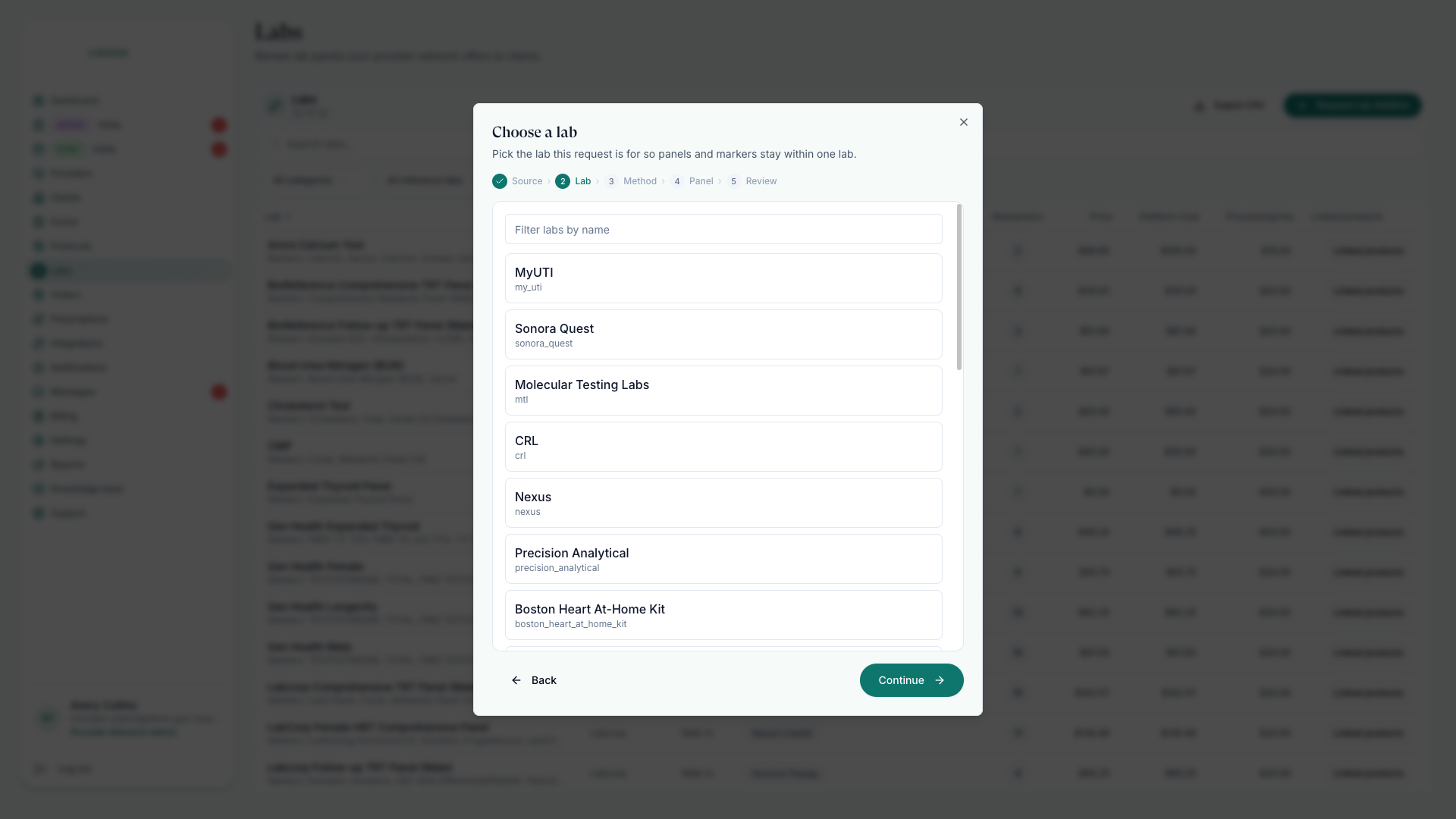
Request a missing lab
Submit a lab addition request with enough context for review.
Link related products
Connect follow-on products to a lab when results should lead to protocol recommendations.
Attach lab requirements to protocols
Set lab requirements from the protocol catalog so patients complete labs before clinical review when needed — see Create Protocols.
Where labs meet patients
Labs surface at two patient-facing moments: before review, when a protocol's lab requirements ask for testing first, and after results, when a linked product turns a result into a recommended next step. Both are configured from the catalog, not the lab itself.
Good to know
- Your network's lab links do not override a client-specific link when the client has its own.
- Once patients purchase or complete lab requirements, follow the lab order lifecycle from Orders — see Track Orders.
- Lab requirements shape the review queue: a chart review only becomes ready once its required labs are complete.
- Lab categories are yours — group tests the way your team searches.
Provider and delegate lab views are for reference during care. Configuration is an Admin job.
Was this helpful?