
Find Patients
Find any patient connected to your network and fix the reasons one might not appear.
The Patients page shows every patient connected to your network through active clients and assignments. Use it to find a patient — and to see why one isn't showing up. Admin or Provider, visibility follows the same rules.
Open PatientsCan't find a patient? Check these first
A missing patient is almost always a scope issue, not a missing record. Work down this list first:
- Network linkage — is the patient's client linked to your network? See Linked Clients.
- Client assignment — is the searching provider assigned to that client? See Assign Providers.
- Provider assignment — is the provider expected to serve this patient assigned correctly?
- Patient status — is the patient active?
- State license coverage — providers only see patients in states where they hold an active, verified license. See Credential Checks.
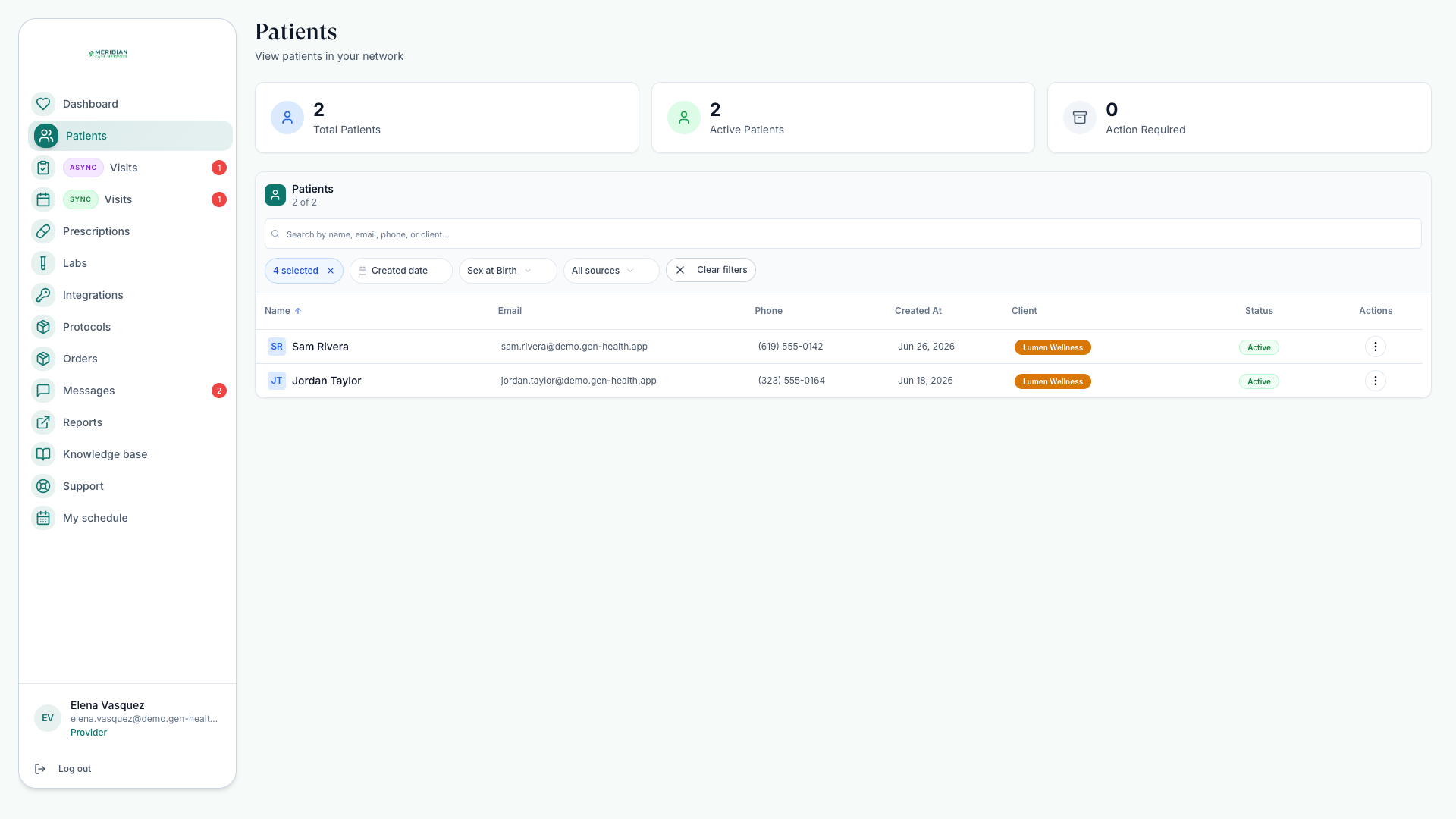
How patient access works
Patients is scoped by role: Admins see patients across active linked clients; Providers see a narrower, read-only set shaped by client assignment and license coverage. Provider Delegates also get patient login assistance tools for linked-client patients.
The full breakdown is in Roles & Permissions — it's why two people can search the same name and get different results.
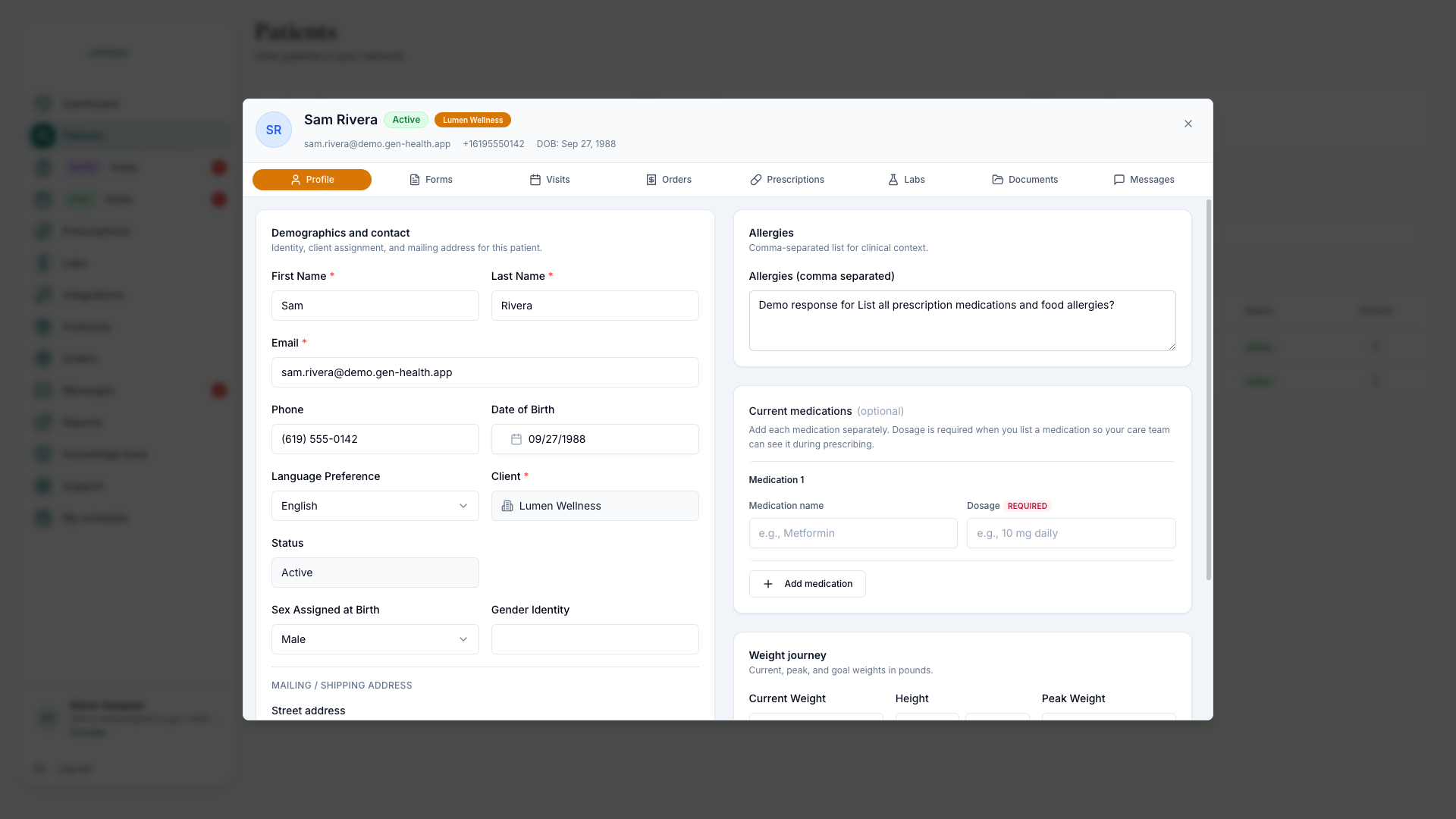
Use the patient profile
- Review demographics and contact details before coordinating care.
- Open history, forms, labs, orders, prescriptions, and timeline details available to your role.
- Use patient communication tools only for appropriate administrative or care-related follow-up.
Help a patient sign in
Provider Delegates have patient login assistance tools for linked-client patients. When a patient can't get in, a delegate is the right person to help. See Delegate Accounts.
Confirm patient identity and context before you act on a record — especially before messaging. See Message Patients.
Was this helpful?