
Charting Options
Choose how providers chart visits and reviews, from layout to SOAP tools.
Charting options decide what a provider sees when documenting a visit or chart review. Pick the layout and tools that fit your clinicians. Who can do this: Admins change charting options; the change affects every Provider — see Roles & Permissions.
Open SettingsWhere charting options live
In Settings, go to the operations area for the charting workflow preferences. AI configuration sits alongside — set SOAP and charting preferences there so AI drafts match your workflow.
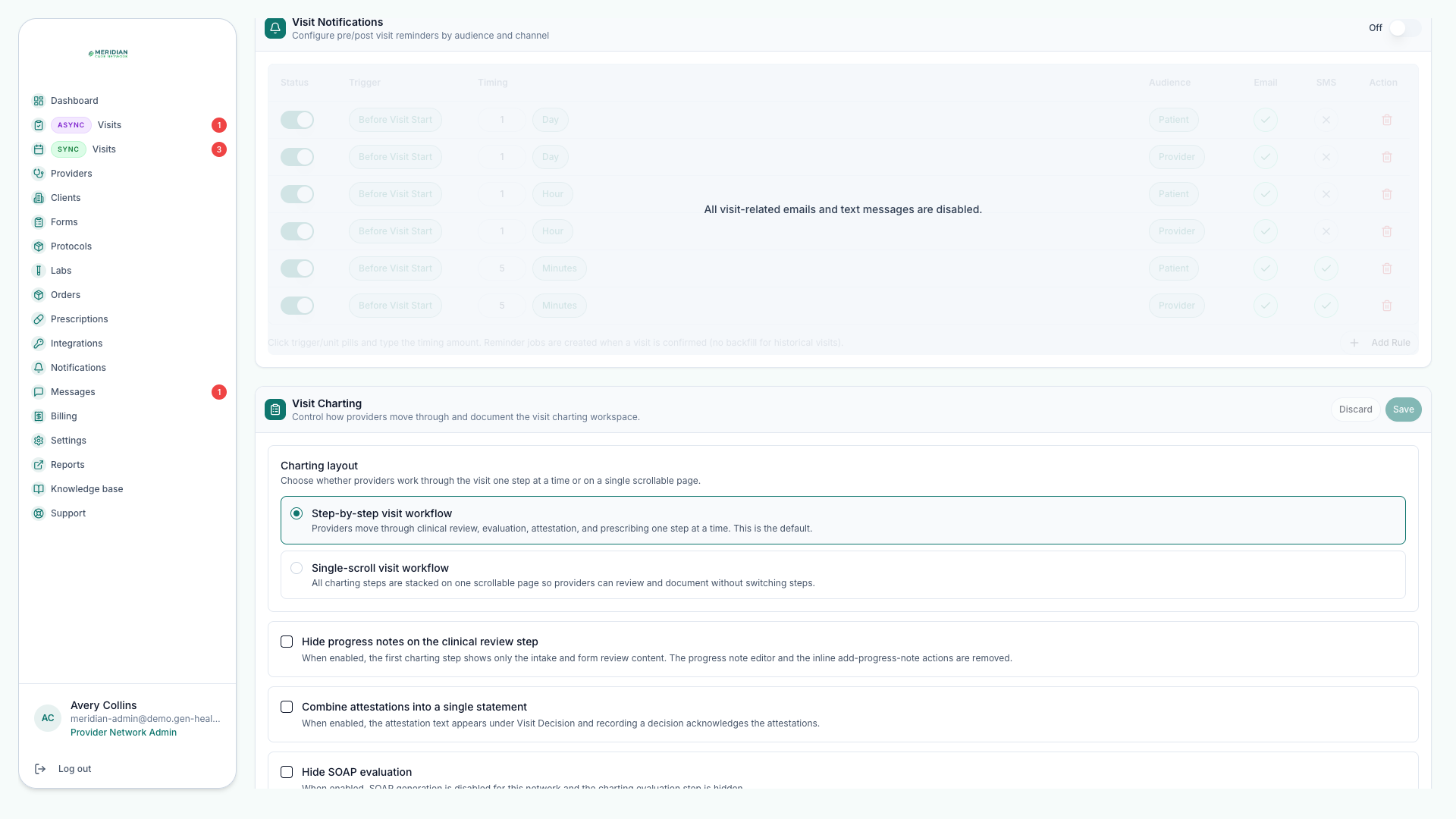
The four options
| Setting | What it changes |
|---|---|
| Layout | Step-by-step (one section at a time) or single-scroll (everything on one page). |
| Progress notes | Show or hide progress-note sections. |
| Attestations | Keep attestations separate, or combine them with custom decision text. |
| SOAP | Show or hide SOAP evaluation and generation tools. |
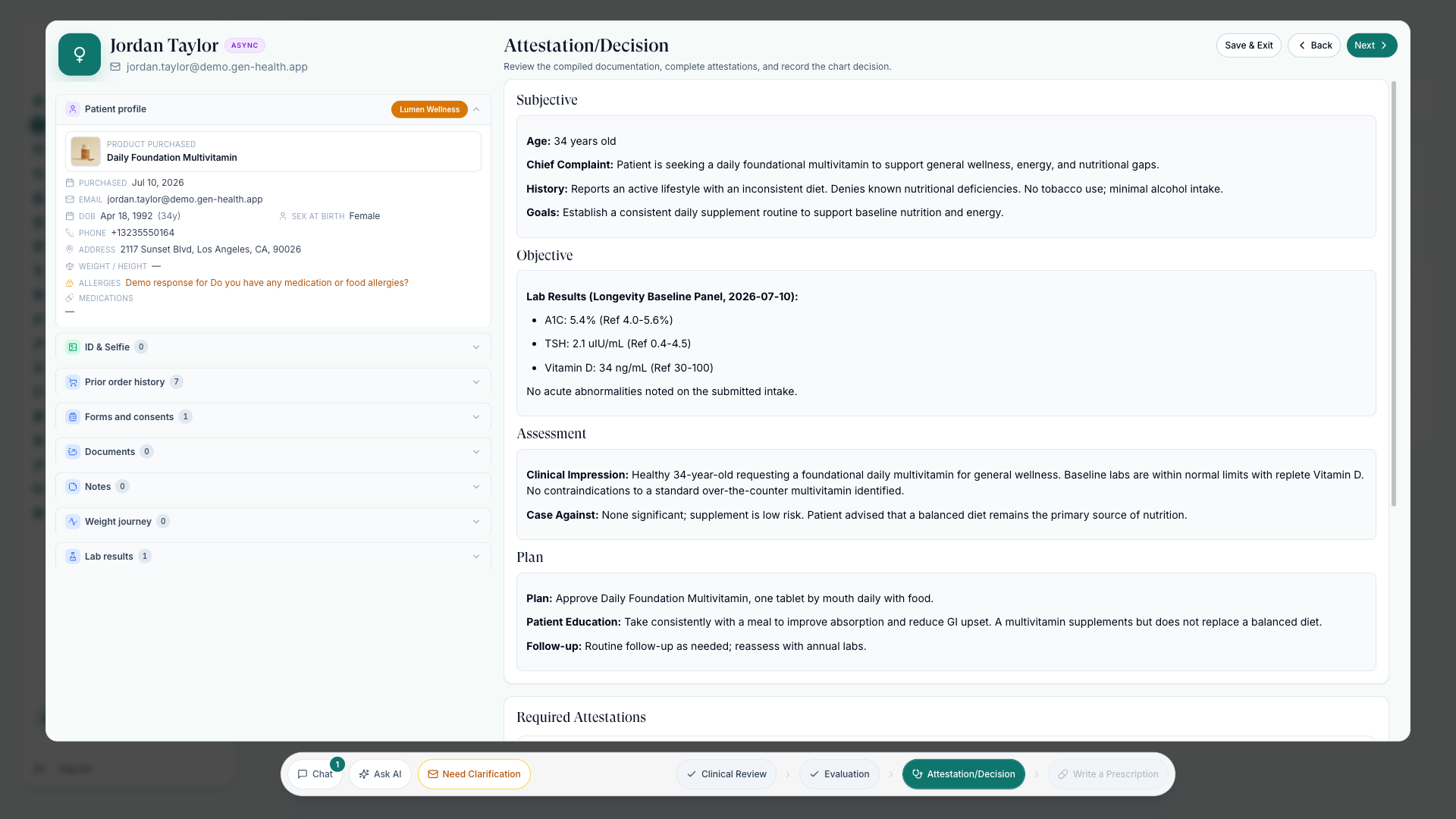
How the choices feel
Step-by-step walks the provider through one section at a time — for teams that want a guided, consistent note. Single-scroll shows the whole note at once — for providers who move fast and know the structure. Hiding progress notes or SOAP tools removes those sections entirely, so hide them only if your workflow never uses them.
Change options safely
Agree on the workflow
Decide with your clinical team: guided steps, or top-to-bottom in one scroll.
Set the options
Update layout, progress notes, attestations, and SOAP visibility in Settings.
Tell your providers
These settings change live charting behavior. Announce updates before providers' next session.
Review a charted visit
Have a provider complete one review or visit and confirm the note structure.
If providers use AI-assisted SOAP drafts in chart reviews, keep SOAP tools visible — they draft the note, then edit until it reflects their clinical judgment. See Complete Chart Reviews.
Was this helpful?