
Manage Licenses
Keep NPI, licenses, availability, and prescribing status current for every provider.
Credential lapses stall care: reviews can't be claimed, visits can't be booked, prescriptions can't be sent. Run it for every new provider, then on a schedule. Who can do this: Admins — see Roles & Permissions.
Open ProvidersWhen to run it
- Before a new provider's first clinical work — right after account setup.
- Before prescription workflows depend on a provider.
- When Notifications brings a license update, NPI change request, or availability request.
- On a schedule for everyone active — lapses rarely announce themselves.
The credential checklist
All five must be true for clinical work to flow.
Provider has active status.
NPI and identity details are complete.
License states match where their patients live.
Availability is set if the provider sees scheduled video or phone visits.
ScriptSure or prescribing status is verified before prescription work depends on it.
Run a check
Open the provider profile
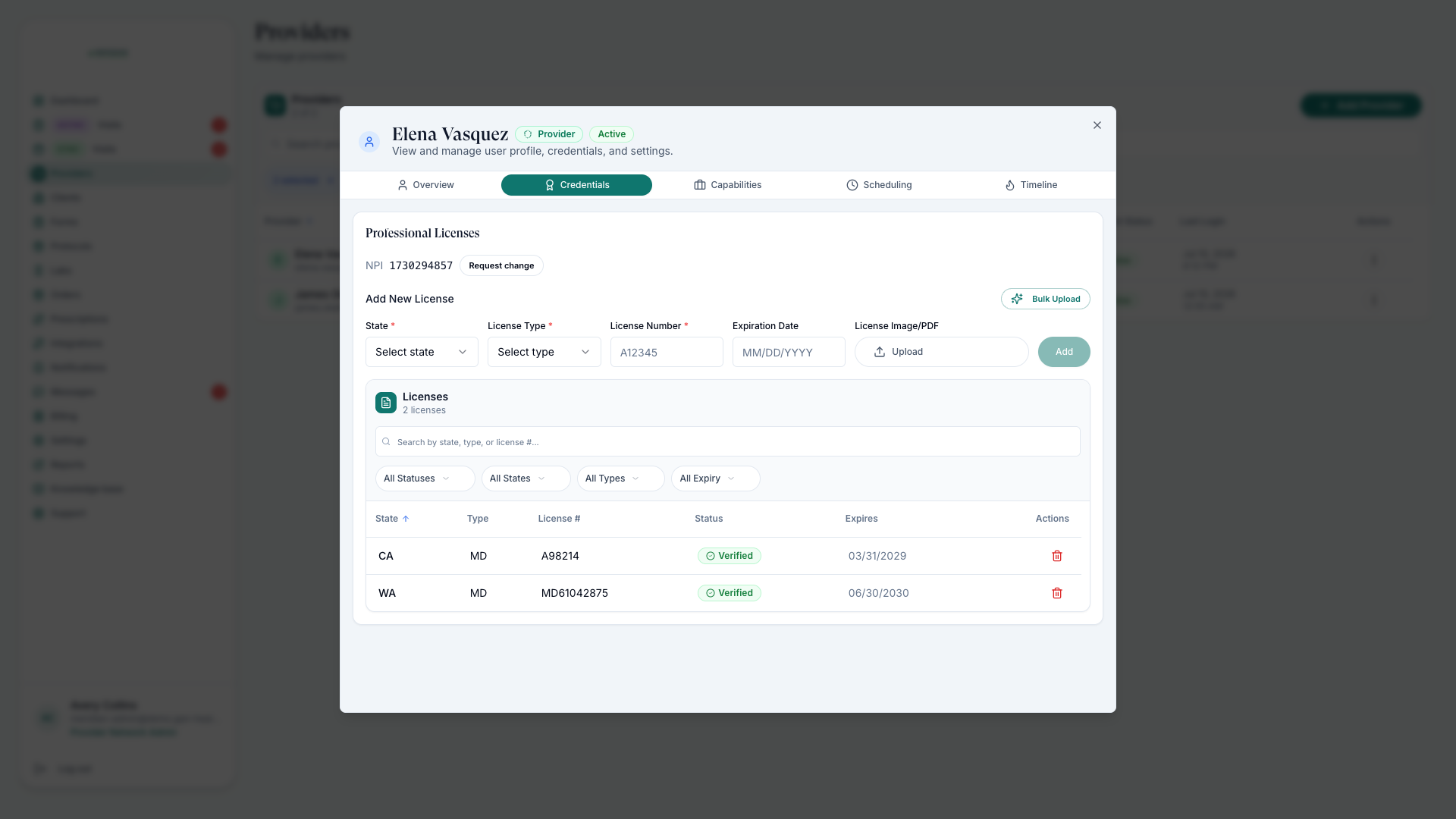
From Providers, open the provider and check NPI, identity, license, and application status.
Compare licenses to where you operate
A provider can only serve patients in states where they hold an active, verified license. Gaps show up as missing patients and unclaimable reviews.
Confirm availability and prescribing readiness
Check availability for scheduled visits and ScriptSure verification for prescribers — see ScriptSure Setup.
Why it matters daily
- Providers can claim and complete reviews only when license, client assignment, and state rules allow.
- Missing license coverage is a common reason a provider can't see a patient — see Find Patients.
- License updates, NPI change requests, and availability requests arrive in Notifications — see Handle Notifications.
- Availability gaps stop patients booking scheduled visits with that provider.
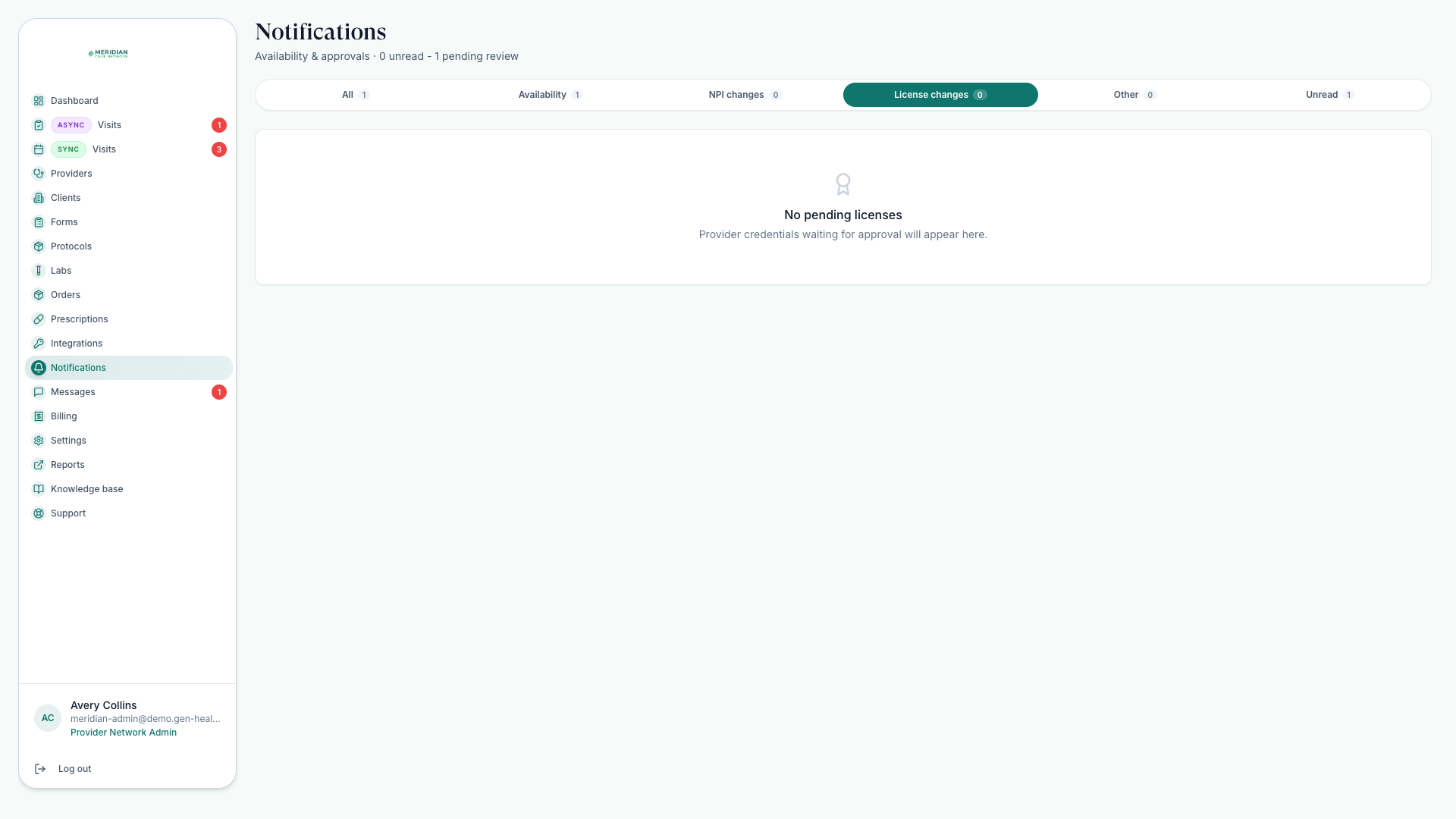
Fold this into your morning routine — Daily Workflow starts with Notifications, where credential issues surface first.
Was this helpful?